Why Your Fitness Tracker's Sleep and Step Data Gets Confused After a Flight
Quick Answer: Most fitness trackers rely on your phone’s time zone to timestamp sleep and activity data, and a delayed or manual time zone update after landing can cause sleep sessions to log at the wrong hours or split oddly across two calendar days. Manually confirming the time zone update immediately after landing, rather than waiting for it to auto-sync, prevents most of the confusion.
You land, adjust your watch, and figure the tracker follows along automatically. A few days later your sleep graph looks like it belongs to someone else entirely.

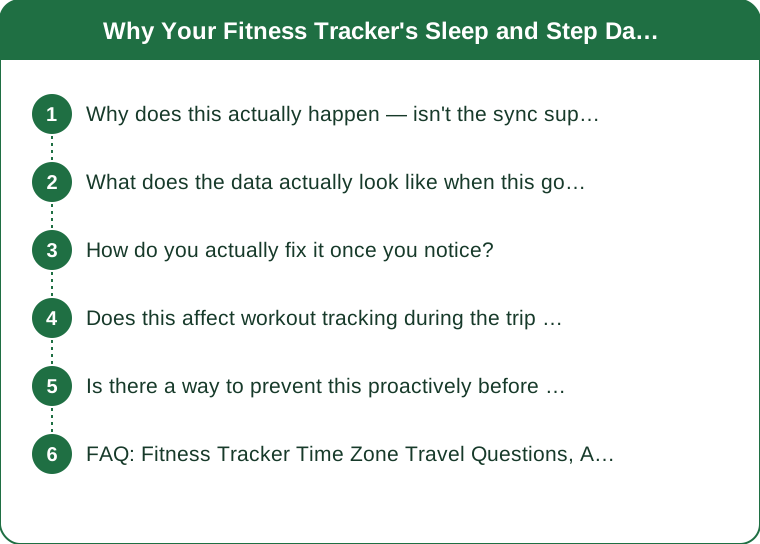
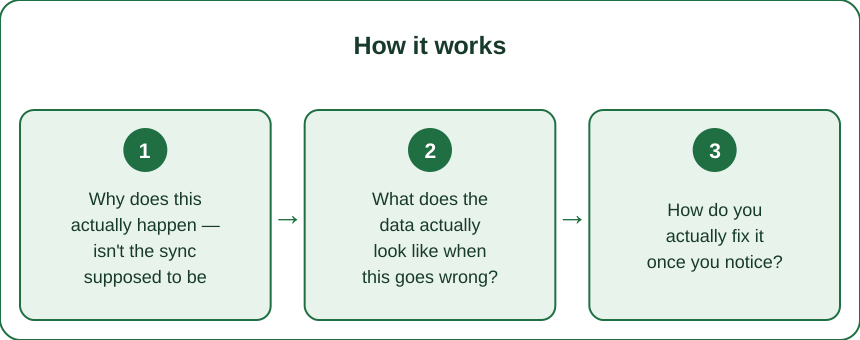
Why does this actually happen — isn’t the sync supposed to be automatic?
It usually is, eventually — but auto time zone updates on phones can lag by hours, especially with airplane mode toggled on and off during a flight, or on connecting flights through multiple zones. Your tracker pulls its timestamp reference from your phone, so if the phone’s zone hasn’t fully updated when you go to sleep that first night, the sleep session can log against the wrong reference time entirely.
This is more noticeable on trips crossing several time zones than on short regional trips, since the data distortion scales with how far off the timestamp reference is.
What does the data actually look like when this goes wrong?
The most common pattern is a sleep session that appears split across two days, or a night’s sleep that shows as unusually short or long compared to how it actually felt. Step and heart rate data usually stay accurate in terms of raw counts, but get mis-attributed to the wrong day or hour on the app’s timeline, which throws off daily comparisons and streaks.
This is a timestamp and display issue, not a sensor accuracy issue — the tracker recorded real data, it’s just filed it under the wrong local time.
How do you actually fix it once you notice?
Manually check and confirm your phone’s time zone setting right after landing, rather than assuming it updated automatically — this is the single most effective fix, since it’s almost always the root cause. Opening the tracker’s companion app and forcing a manual sync afterward helps the device catch up faster than waiting for its next automatic sync window.
If a sleep session already logged incorrectly before you caught the time zone issue, most apps don’t offer an easy manual correction — the cleanest fix going forward is confirming the zone before your first night’s sleep in the new location, rather than trying to fix already-logged data after the fact.

Does this affect workout tracking during the trip too?
Less dramatically than sleep, but yes — a GPS-tracked run or walk started before a time zone update fully processes can occasionally log under the wrong day on the app’s calendar view, even though duration and distance stay accurate. It’s more of a display annoyance than a data-loss problem for workouts specifically, since the underlying GPS and duration data doesn’t distort the way overnight sleep timestamps can.
Is there a way to prevent this proactively before a trip?
Manually switching your phone’s time zone setting as soon as you land, instead of leaving it on automatic, is the most reliable fix — it removes the dependency on your carrier or GPS triggering the update on its own schedule. Doing this before your first sleep session in the new zone, specifically, is the detail that actually prevents the sleep-data confusion most people notice.
FAQ: Fitness Tracker Time Zone Travel Questions, Answered
Does this happen with every fitness tracker brand?
Most major brands rely on phone-reported time zone data in some form, so the issue isn’t brand-specific, though how gracefully each app displays the resulting confusion varies.
Will my tracker’s data self-correct after a few days?
Usually yes, once the phone’s time zone is fully settled and confirmed — but data already logged incorrectly during the transition typically stays as-is rather than retroactively correcting.
Should I just ignore sleep and step data for the first day of a trip?
That’s a reasonable practical approach — treating the first travel night’s data as unreliable and focusing on trends from day two onward avoids the confusion entirely.
TL;DR:
- Trackers pull timestamps from your phone’s time zone setting, which can lag after landing
- The most common symptom is sleep data appearing split or mis-timed across two days
- Manually confirming your phone’s time zone right after landing is the most reliable fix
- Workout tracking is less affected than sleep data, since GPS duration stays accurate regardless
It’s not your body or your tracker malfunctioning — it’s a timestamp handoff issue that a 10-second manual check after landing solves before it ever becomes confusing.
Keep Reading
This article is for general informational and styling purposes only. Fit, sizing, and product availability may vary.